Showing posts with label virtualization. Show all posts

Tuesday, April 03, 2018

Test MySQL 8.0 right in your computer

MySQL 8.0 GA is right around the corner. I don't have precise information about its release, as I don't work at Oracle. If I did, I would probably know, but I couldn't tell when the release is scheduled to appear because of company policies. I can, however, speculate and infer, based of my experience with previous releases. My personal assessment is that the release will appear before 9:00am PT on April 24, 2018. The "before" can be anything from a few minutes to one week in advance.
Then, again, it may not happen at all if someone finds an atrocious bug that needs to be fixed asap.

Either way, users are keen on testing the new release in its current state of release candidate. Here I show a few methods that allow you to have a taste of the new goodies without waiting for the triumphal (keynote) announcement.


1. Docker containers

If you are a docker user, using a container to test MySQL is a no brainer. Unlike virtual machines or standalone servers, a docker container comes ready to use, with nothing to configure. All you need to do is pulling the right image. As with every docker images, you pull once and then use as many times as you need.

There are two reliable images that contain the latest MySQL. One is called mysql:8.0 and is tagged as official, which means that it is released by the Docker maintenance team. The other one, which is released by the MySQL team, is called mysql/mysql-server:8.0.

$ docker pull mysql:8.0
8.0: Pulling from library/mysql
Digest: sha256:7004063f8bd0c7bade8d1c526b9b8f5188c8288f411d76ee4ba83131e00c6f02
Status: Downloaded newer image for mysql:8.0

$ docker pull mysql/mysql-server:8.0
8.0: Pulling from mysql/mysql-server
Digest: sha256:e81d95f788adb04a4d2fa5f6f7e9283ca0f6360fb518efe65af5a7377a4ec282
Status: Downloaded newer image for mysql/mysql-server:8.0

The mysql image is based on Debian, while the original package, as you would expect, is based on Oracle Linux.

Let's see how to run MySQL in a container.

$ docker run --name official  -e MYSQL_ROOT_PASSWORD=secret -d mysql:8.0
60ec307578a139f5083ded07e94d737690d287b1b95093878675983a5cc40174

$ docker run --name original -e MYSQL_ROOT_PASSWORD=secret \
    -d mysql/mysql-server:8.0
0c93bb4a97ffa53232a69732d3ae45413a443e38fa43ad6fdc4057168cba42d2

With the above commands we get two containers, one for the official image and one for the original one.
We can't use them straight away, though. We need to wait for the servers to be ready. An easy method to verify the status of the server is looking at docker logs:

$ docker logs original --tail 1
2018-04-01T21:23:30.395461Z 0 [System] [MY-010931] /usr/sbin/mysqld: ready for connections. Version: '8.0.4-rc-log'  socket: '/var/lib/mysql/mysql.sock'  port: 3306  MySQL Community Server (GPL).

$ docker logs original --tail 1
2018-04-01T21:23:30.395461Z 0 [System] [MY-010931] /usr/sbin/mysqld: ready for connections. Version: '8.0.4-rc-log'  socket: '/var/lib/mysql/mysql.sock'  port: 3306  MySQL Community Server (GPL).

Here, after about 10 seconds, both containers are ready to use. We can now access the servers. One easy method is through docker exec

$ docker exec -ti original mysql -psecret
mysql: [Warning] Using a password on the command line interface can be insecure.
Welcome to the MySQL monitor.  Commands end with ; or \g.
Your MySQL connection id is 15
Server version: 8.0.4-rc-log MySQL Community Server (GPL)

Copyright (c) 2000, 2018, Oracle and/or its affiliates. All rights reserved.

Oracle is a registered trademark of Oracle Corporation and/or its
affiliates. Other names may be trademarks of their respective
owners.

Type 'help;' or '\h' for help. Type '\c' to clear the current input statement.

mysql>

A similar command would allow us to access the other container.

If you want to try replication, more work is needed. In these articles you will find more details on Docker operations, and examples of advanced deployments:


2. Sandboxes

A sandboxed database is deployed in a non-dedicated box, with its configuration altered in such a way that it will run independently from other similar deployment and even from databases running in the main space.
The granddaddy of the sandbox deployer was MySQL-Sandbox, which has recently evolved into the more powerful and easier to use dbdeployer.
You can use MySQL-Sandbox to test a MySQL 8.0 tarball on MacOS

$ make_sandbox --export_binaries  mysql-8.0.4-rc-macos10.13-x86_64.tar.gz

This command unpacks the tarball into $HOME/opt/mysql and deploys the database in $HOME/sandboxes/msb_8_0_4.
Until recently, the same command would work on Linux without modifications. In MySQL 8.0.4, though, the tarball organization for Linux has changed. There are symbolic links for SSL libraries inside the ./bin directory. Those symlinks are not extracted by default, but only if you use the option --keep-directory-symlink when opening the tarball. MySQL-Sandbox doesn't do it, also because this option is not standard to every version of tar.

Thus, if you want to use the old MySQL-Sandbox, you need to run the extraction manually.

$ cd $HOME/opt/mysql
$ tar -xzf  --keep-directory-symlink /tmp/mysql-8.0.4-rc-linux-glibc2.12-x86_64.tar.gz
$ mv mysql-8.0.4-rc-linux-glibc2.12-x86_64 8.0.4
$ make_sandbox 8.0.4

I don't recommend the above procedure, for either Linux or MacOS. The main reason, in addition to the manual operations involved, is that MySQL-Sandbox is not going to be updated for the time being. Instead, you should use dbdeployer, which has all the main features of MySQL-Sandbox and a lot of new ones. Here's the equivalent procedure:

$ dbdeployer unpack /tmp/mysql-8.0.4-rc-linux-glibc2.12-x86_64.tar.gz
$ dbdeployer deploy single 8.0.4
Database installed in $HOME/sandboxes/msb_8_0_4
run 'dbdeployer usage single' for basic instructions'
. sandbox server started

dbdeployer uses a different method to initialize the database server, which at the same time makes the initialization more visible and avoids the problem of the phantom SSL libraries.

Note: Tarballs for recent MySQL versions are really big. MySQL 8.0.4 binaries expand to 1.9 GB. If storage is an issue, you should get the tarballs from a collection of minimised tarballs (Linux only) for most MySQL versions. For now, it's maintained by me, but I hope that the the MySQL team will release something similar.

Once you have deployed a sandbox with MySQL 8.0, using it is easy:

$ cd $HOME/sandboxes/msb_8_0_4
$ ./use
Welcome to the MySQL monitor.  Commands end with ; or \g.
Your MySQL connection id is 8
Server version: 8.0.4-rc-log MySQL Community Server (GPL)

Copyright (c) 2000, 2018, Oracle and/or its affiliates. All rights reserved.

Oracle is a registered trademark of Oracle Corporation and/or its
affiliates. Other names may be trademarks of their respective
owners.

Type 'help;' or '\h' for help. Type '\c' to clear the current input statement.

mysql [localhost] {msandbox} ((none)) >

dbdeployer creates several shortcuts for the most common commands to use the database. ./use is the most common, and provides access to the MySQL client with all the necessary options needed to use it correctly. For more information on what is available, run

$ dbdeployer usage single

This functionality would be enough to decide for a sandbox as your preferred method for testing. However, it this is only a tiny portion of what you can do with dbdeployer in your own computer. With a single command, you can test master/slave replication, multi-primary group replication, single primary group replication, fan-in, and all-masters topologies.

You can try the following commands:

$ dbdeployer deploy single 8.0.4
$ dbdeployer deploy replication 8.0.4
$ dbdeployer deploy replication 8.0.4 --topology=group
$ dbdeployer deploy replication 8.0.4 --topology=group --single-primary
$ dbdeployer deploy replication 8.0.4 --topology=all-masters
$ dbdeployer deploy replication 8.0.4 --topology=fan-in

If you have enough RAM, all these deployments will survive in parallel.
In my desktop, I can run:

$ dbdeployer sandboxes --header
name                        type                    version  ports
----------------            -------                 -------  -----
all_masters_msb_8_0_4     : all-masters               8.0.4 [15001 15002 15003]
fan_in_msb_8_0_4          : fan-in                    8.0.4 [14001 14002 14003]
group_msb_8_0_4           : group-multi-primary       8.0.4 [20009 20134 20010 20135 20011 20136]
group_sp_msb_8_0_4        : group-single-primary      8.0.4 [21405 21530 21406 21531 21407 21532]
msb_8_0_4                 : single                    8.0.4 [8004]
rsandbox_8_0_4            : master-slave              8.0.4 [19009 19010 19011]

When MySQL 8.0.11 is released, you can replace "8.0.4" with "8.0.11" and get a similar result.

BTW, you have seen that deploying replication sandboxes may take a long time. You may try adding --concurrent to each command, and enjoy a notable speed increase.

What else can you do with the sandboxes you have just deployed? Plenty! For a complete list, have a look at the online documentation. But for the moment, you may try this:

$ dbdeployer global status
$ dbdeployer global test
$ dbdeployer global test-replication

3. Other methods

Besides the methods that I recommend, there are others that you could use, but I won't advise about them as there are more qualified ones for that.

  • Standalone server. If you have the luxury of having one or more standalone servers sitting in a lab, by all means go for it. Just follow the instructions about installing MySQL on your lucky server. Be advised, though, that depending on the method you choose and the version of your operating system, you may face compatibility issues (.rpm or .deb dependencies).
  • Virtual machines. VMs share with standalone servers the same ease of installation (and the same dependency issues), only a bit slower. They are convenient, as you can use them to test in conditions that more closely resemble production settings, and if you use a configuration server such as Puppet or Ansible, your task of testing the new version could be greatly simplified. The instructions for the virtual machines are the same seen for standalone servers.

Monday, November 16, 2015

MySQL-Docker operations. - Part 4: Sandboxes, virtual machines, containers.

Previous episodes:

We're going to explore the choices and the differences between various types of deployments. We will consider four use cases:

  1. [Friendly]: Testing an application on a server where a different version of the same application is already installed (examples: a Python app requiring many libraries, a MySQL server);
  2. [Intrusive]: Testing a potentially intrusive application (anything that changes your general settings in /usr or /etc);
  3. [Conflicting]: Running a service that has lots of conflicting dependencies (an updated database driver compiled with a version of MySQL different from what you have installed);
  4. [Intractable]: Running an intractable service, one of those that require a specific user to run and assume they have full control of the operating system (e.g. Postgresql, Oracle).

For each case, we need to determine the impact on our well being. We assume that the user starts with one reasonably powerful server.

The method used will affect our operations in several ways:

  1. Cost: How much would it cost to implement this method.
  2. Time: How much time will be needed to get things done.
  3. Performance: Can we run things as fast as we need.
  4. Ease of use: Can we get things done without reading a lengthy manual or using an unforgiving and complicated procedure;
  5. Isolation: Can you run your server without affecting other servers?
  6. Storage: Can we add or change storage easily?
  7. Scalability: Can we easily repeat the procedure as many times as needed.
  8. Availability: Can we run any service using this method?
  9. Portability: Can we run this service on several operating systems?
  10. Networking: Can we use this method to run operations that require a network?

Running servers on a regular host

The first possibility to solve our problem is simple. Take an empty server, install the service, run it. Until not long ago, before the advent of cloud computing, this was the only way to run operations: if your server is not enough, buy a bigger one, or buy many small ones and get smarter with them. But inevitably, whether we wanted to install a new service or test a new version of a known application, we needed to find money and physical space to get the job done.

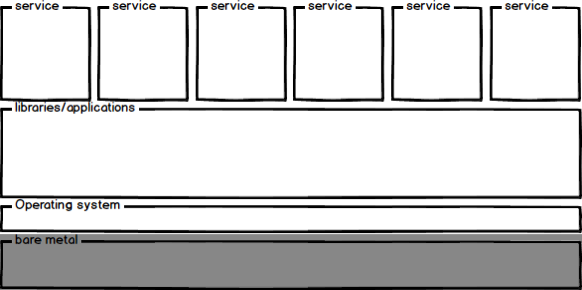
Regular apps

Figure 1 : Applications within a server share the operating system and library resources

In this configuration, everything is by the book. We assume that we will use one physical host to run a main service, using the best configuration we can get to achieve the purpose.

The evaluations in the following table are based on my own experience and may differ from what others feel or need.

Requirement score notes
Cost –10 You need to own a new server
Time 8 You need to install it, but it can be easily automated
Performance 10 Nothing beats bare metal
Ease of use 8 As easy as the installation procedure makes it.
Isolation 10 Not going to affect services in other machines.
Storage –10 Changing storage requires physical manipulation
Scalability –10 Every new server requires a new purchase
Availability 10 We can run anything.
Portability 10 We can install the O.S. that we need, and the services on top of it
Networking 0 We can use, but can't create or simulate networking.
Total +56 / -30

The negative results should be considered separately from the positive ones. What could be a prohibitive condition for an individual could be merely a nuisance for someone in a stronger position. For example, if you already have access to bare metal servers for the next two years, thanks to an advantageous merger, you may not feel the cost factor to affect you too much.

Evaluation for the bare metal servers usability:

  • [Friendly]: easily used. No problems here.
  • [Intrusive]: difficult to use. Installing one of those means that you may have trouble installing anything else.
  • [Conflicting]: Extremely difficult. You may end up with the inability of upgrading a given service unless you also upgrade all the dependencies, and end up upgrading the whole operating system out of desperation.
  • [Intractable]: Extremely difficult. Once you install one of those, you may not be able to use the server for anything else.

Running servers in a sandbox

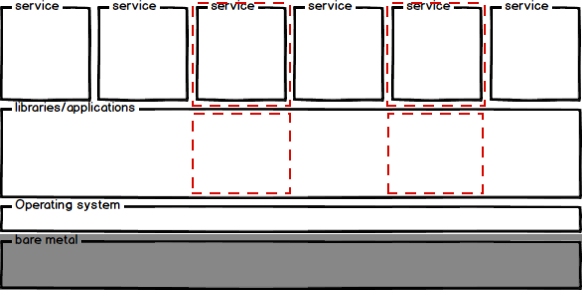
In this context, by sandbox I mean an application that runs on a server with strict configuration settings that prevent it from misbehaving. One example for this category is MySQL-Sandbox, where one or more MySQL servers are installed in a host, each of them configured in such a way that it does not clash with the others.

Sandboxes

Figure 2 : Sandboxes are regular applications that were carefully configured to behave well without disturbing the neighbors.

While MySQL-Sandbox is designed for testing, deploying several production servers on the same host is a common practice. The main reason for it is that commodity servers have become more and more powerful, but the software hasn't caught up to utilise such power to its fullest. In this context, using a single server on such powerful hosts would be a waste, while installing two or three servers would provide for better effectiveness.

This type is similar to running a plain bare metal server. You are running your MySQL server very close to the metal, as there is no software layer between the server and the operating system. Applications configured this way are as fast as the hardware allows. However, they are not as secure. While a lonely server running inside its dedicated host does not have to worry about clashing, a sandbox is sharing libraries and other operating system resources to other similar servers, and a clash is easy to provoke. It would be enough to mix up the configuration settings, and one or more of them would either stop working or corrupt data. Or it could happen that a sandbox could drain all the resources (e.g. the main memory) leaving all the other contenders in the cold.

Requirement score notes
Cost 10 No investment required
Time 8 As easy as the installation procedure makes it
Performance 10 Still bare metal, even if there is potential concurrency.
Ease of use 10 As easy as the manual says it is
Isolation -5 Depends on the service configuration.
Although it is functionally independent, the services can clash.
Storage 5 Sandboxes can be resized at will (within the limits of existing storage).
Scalability 10 Deployment of new instances is only limited by the host resources.
Availability 5 We can run only applications that are fully configurable.
Portability -5 We can only run applications for the host O.S.
Networking We can use but can't create or simulate networking.
Total +58 / -10

There are several advantages to using sandboxes instead of a dedicated host, such as being able to deploy multiple servers without buying new hardware or installing virtual machines. There are, however, obvious limitations, like the lack of isolation mentioned above and the fact that only applications compiled for the host operating system can run in this fashion.

Evaluation for the sandboxes usability:

  • [Friendly]: easily used. This is the strong point of sandboxed applications.
  • [Intrusive]: Difficult to use. Sometimes impossible.
  • [Conflicting]: Difficult but possible to use. It's one of the case where having a conflicting application used in a parallel environment could be beneficial.
  • [Intractable]: Almost impossible to reduce to a sandboxed environment.

Running servers in virtual machines

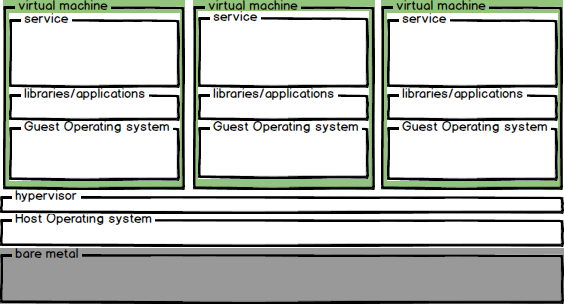
VM

Figure 3 : A virtual machine isolates the application and the operating system.

Virtual machines are the heart of current cloud computing strategies. The ability of creating servers that behave almost like bare metal ones –without need for physically buying them and transporting into a data center– has changed the economy of most companies in the past decade.

Requirement score notes
Cost -5 Moderate investment required
Time As easy as the installation procedure makes it. But the O.S. must be installed as well
Performance -10 There is much overhead from the additional layers and the need of having a full O.S..
Ease of use 8 Everything that is allowed through the interface.
Isolation 9 It can be as good as a physical host.
There is still the risk of a VM affecting negatively others.
Storage 5 V.M.s can be resized at will (within the limits of existing storage).
Scalability 10 Deployment of new instances is only limited by the host resources.
Availability 10 We can run anything.
Portability 10 We can install the O.S. that we need, and the services on top of it
Networking 10 We can use and create networks.
Total +62 / -15

Compared to bare metal, virtual machines can scale at will. You can deploy in a few minutes a new VM of the size that is needed for your current business, and get rid of it when the need ends. Unlike sandboxes, you can run any operating system and any application. In addition, you can have a network for public and private communication between servers.

There are prices to pay. First of all, it will cost you. Depending on the usage, they could be much cheaper than buying and storing your own physical servers, but they won't be free. Sure, you can install a virtual machine in your initial server, the same way that you can do it for a sandbox, but then you get into the second great limitation: performance. Even with the best software available today, the performance of a server running in a VM is greatly inferior to a server on bare metal.

You can compensate for performance by splitting the job into many parts and deploying many small virtual machines that will work in parallel. When a solution like this is successfully deployed, the performance of the group of virtual machines can surpass that of a single bare metal server. Unfortunately, to achieve this goal, you would incur more costs than buying a single server, and your application will need to be adapted to working in a distributed environment. This solution can work, and it has been deployed successfully in many cases, but it is not a one-size-fits-all, and done with poor planning can backfire.

Evaluation for the virtual machines usability:

  • [Friendly]: easily used. No problems here.
  • [Intrusive]: Easily used with overhead. Just install another virtual machine.
  • [Conflicting]: Easily used with overhead.
  • [Intractable]: Easily used with overhead.

Running servers in containers

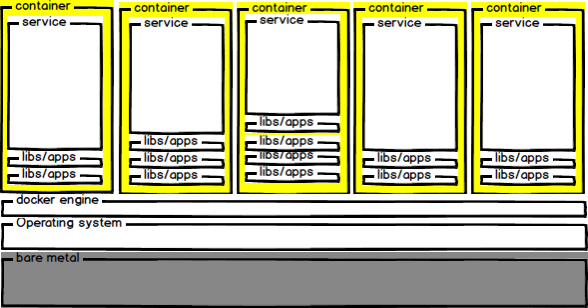
Docker

Figure 4 : Docker containers are thin layers of libraries and applications on top of a common kernel.

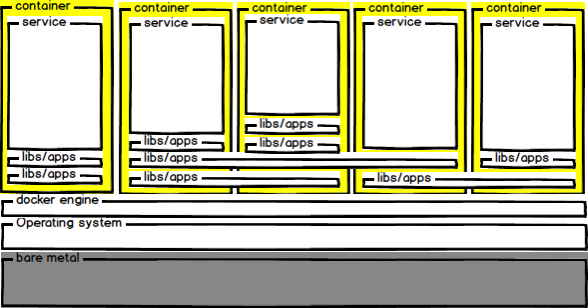
Containers are a growing trend in the virtualization ecosystem. If, by the previous statement, you believe that containers are virtual machines, you need to reconsider immediately, or risk failing to understand this technology. Containers are not virtual machines, although they have many things in common. Like virtual machines, containers are entities that are not in the host computer, can be deployed in a package, started, and the service inside it can be used more or less like a server on bare metal.

The differences between virtual machines and containers are a few, and very important:

  • A container does not pack a full operating system, but just a thin layer of the needed libraries to run the service in it;
  • The service itself is often a stripped down version of the original application.
  • Most important, the software in the container uses the host kernel directly, without any intermediate layer.
  • For the above reasons, while a virtual machine starts up in minutes, a container starts up in less than a second.

A container is a well packaged application that can be downloaded very quickly, and once downloaded can be instantiated several times with incredible speed.

Another notable difference between containers and virtual machines is that containers are less isolated, because they use the same kernel as the host, rather than a virtualized one. On one hand, this makes containers less secure, on the other hand, they are blazingly fast.

Docker shared

Figure 5 : Docker containers can share libraries and other image layers

There is another reason for containers speed and low storage occupancy. Docker containers are deployed in layers. Some of those layers can be used by a single container, others could be in common between two or more containers. While a virtual machine is an enormous blob which can reach several GB, a container could be a thin modification of an existing image, and thus can be downloaded in seconds and deployed even faster.

Requirement score notes
Cost 10 No investment required
Time 10 Fast, fast, fast!
Performance 9 Almost as fast as running on bare metal. Tiny overhead.
Ease of use 3 Requires some learning and new workflows.
Isolation 7 Much better than a sandbox.
Less than a V.M., because containers use the same kernel.
Storage 5 Containers can be resized at will (within the limits of existing storage).
Scalability 10 Deployment of new instances is only limited by the host resources.
Availability 3 We can run only applications that have been adapted for containers.
Portability -5 We can only run applications for the host O.S.
Networking 10 We can create and use netweoks.
Total +67 / -5

What are the strong points of containers? Low cost (or no cost, if all you need is what fits in your current server), good performance, private networking, easy to scale.

The limitations, as of today, are portability (applications can only run in the same OS as the host) and the ease of use. This is a point that is going to change. Using containers requires some changes in the applications (or finding ready made images) and an understanding of the environment, which could be intimidating for people used to the old ways. But once you get past the initial learning phase, everything feels very easy, and eventually the usage will be far easier than the old ways.

Evaluation for the containers usability:

  • [Friendly]: easily used. No problems here.
  • [Intrusive]: easily used, with little or no overhead.
  • [Conflicting]: easily used with little or no overhead.
  • [Intractable]: difficult to use, sometimes impossible if the intractable application or service was built without flexibility in mind.

All solutions comparison

For convenience, I made a table with a comparison of the solutions examined above.

I must stress that these evaluations are my own, very much subjective, based on my experience. The evaluations may differ from others, and possibly also from my own in a few years or months. Talking about Docker is like catching eels: it's a moving target where the technology evolves and improves daily. This fluidity is possibly the most appealing characteristic of Docker and the container related technology: its evolution has been and continues to be fast and effective, addressing the users needs at incredible speed.

Requirement Bare metal Sandbox Virtual machine Container
Cost –10 10 –5 10
Time 8 8 0 10
Performance 10 10 –10 8
Ease of use 8 10 8 3
Isolation 10 –5 9 7
Storage –10 5 5 5
Scalability –10 10 10 10
Availability 10 5 10 3
Portability 10 –5 10 –5
Networking 0 0 10 10
Total +56 –30 +58 –10 +62 –15 +66 –5

I believe we haven't seen the end of this trend yet. What we have seen so far with containers and virtual machines seems to aim at an architecture built on micro services. Containers could take a substantial role in the transition towards that reality.

What can we take away from this analysis?

  • Bare metal servers are not outdated yet. There are still cases where they are irreplaceable. Despite the cost associated with their usage, they are not extinct yet, but just.
  • Virtual machines are still in charge of the scalability department in many cases. However, they feel the advance of containers and need to either evolve or merge into a more flexible architecture to deal with increasing demands from users.
  • Containers are the new force in IT. They can play well with both bare metal servers and virtual machines, waiting for the rise of container-oriented operating systems, which already exist and aim at world domination in a not distant future.

I see a future where the rise of containers and micro systems will force software makers to simplify their products and make them more modular and easy to play with. This trend is important in the current cloud architecture and will become vital when containers take over.

In the meantime, I am not giving up MySQL-Sandbox, which is still indispensable I'm most scenarios, but I am starting to rethink the architecture to fit smarter future uses.

MySQL deployment summary

With all the above considerations, where do we stand with MySQL? My view is that we're still in middle ground. MySQL is still used heavily on bare metal, either as a stand-alone server or as a part of multi server deployments in the same host.

It is also massively employed in the cloud, where it offers many advantages for deployment flexibility and ease of scalability. Yet it still lacks the agility necessary to be a native cloud component. There are several attempts at creating a better cloud player out of MySQL, some successful, some less so.

When it comes to containers, MySQL has still much work to do to become an efficient building block in the new ebullient architecture expansion. The MySQL team provides an official package, which is a first step towards becoming a good player. But in the near future there will be demands of more integration and better modularity than what's available today. Looking at the internals of MySQL deployment in a container shows that the system is struggling to adapt to the new medium. I see the container revolution as an opportunity for established applications like MySQL to improve their usability and increase their ability to play well with other components of the emerging IT infrastructure.

What's next

In the next (and last) episode we will see MySQL, Docker and orchestrating tools playing together to deliver faster and more powerful operations.

Monday, November 02, 2015

MySQL-Docker operations. - Part 2: Customizing MySQL in Docker


Previous Episodes:

After seeing the basics of deploying a MySQL server in Docker, in this article we will lay the foundations to customising a node and eventually using more than one server, so that we can cover replication in the next one.

Enabling GTID: the dangerous approach.

To enable GTID, you need to set five variables in the database server:
  • master-info-repository=table
  • relay-log-info-repository=table
  • enforce-gtid-consistency
  • gtid_mode=ON
  • log-bin=mysql-bin
For MySQL 5.6, you also need to set log-slave-updates, but we won't deal with such ancient versions here.
Using the method that we've seen in Part 1, we can use a volume to change the default /etc/my.cnf with our own.
$ cat my-gtid.cnf
[mysqld]
user  = mysql
port  = 3306
log-bin  = mysql-bin
relay-log = mysql-relay
server-id = 12345

master-info-repository=table
relay-log-info-repository=table
gtid_mode=ON
enforce-gtid-consistency
However, this approach may fail. It will work with some MySQL images, but depending on how the image is built, the server may not install at all.
$ docker run --name boxedmysql \
    -e MYSQL_ROOT_PASSWORD=secret \
    -v $PWD/my-gtid.cnf:/etc/my.cnf \
    -d mysql/mysql-server
b9c15ed3c40c078db5335dcb76c10da1788cee43b3e32e20c22b937af50248c5

$ docker exec -it boxedmysql bash
Error response from daemon: Container boxedmysql is not running
The reason for the failure is Bug#78957. When my.cnf contains log-bin and mysql is called prior to the installation to perform some detection tasks, the server creates the binary log index in the data directory. After that, the installation task will abort because the data directory is not empty. It sounds as if there is a set of unnecessary actions here (the server should not create the index without other components in place, and the installer should not complain about finding a harmless file in the data directory) but this is the way it is, and we should work around it. At the time of writing, the bug has received a temporary fix and the installation now works.
All considered, it's best that we are forced to run things this way, because there are side effects of enabling GTIDs at startup: there will be unwanted GTID sets in the server, and that could be annoying.

Sunday, October 25, 2015

MySQL-Docker operations. - Part 1: Getting started with MySQL in Docker

Docker is one of the fastest growing trends in IT. It allows fast deployment of services and applications on a Linux machine (and, with some limits, on other operating systems). Compared to other methods of deploying databases, such as virtual machines or application isolation, it offers faster operations and better performance.
Many people, surprised by the sudden advance of this technology, keep asking What is Docker? And why you should use it?
I will write soon an article with a deep comparison of the three methods (VM, container, sandbox), but for now, we should be satisfied with a few basic facts:
  • Docker is a Linux container. It deploys every application as a series of binary layers, containing just the minimum dependencies (libraries and applications) to make the service work;
  • It stores images in a central registry, from where the docker client can download them quickly;
  • By its definition, it is lightweight. If you have the images already in your system, deployment of the service happens in seconds.
  • Unlike virtual machines, where you can deploy virtualized Windows and other non-Linux environment, Docker is Linux-only. You can virtualize every service, provided that it runs on Linux.
  • Docker can run applications in various flavors of Linux at once. It actually makes the Linux flavor dependency transparent, to the point that the users barely realize that.

Installing Docker

Docker installation is pretty much straightforward. The Docker documentation covers the basics and the fine points of installing in any operating system. Rather than repeating the procedure here, I recommend looking the pages for Ubuntu, Mac OS X, or Windows.
Once the installation is complete, the commands shown in this article will apply to all platforms. When there are exceptions, it will be noted in the text.

Friday, November 19, 2010

How to create a private cloud in your laptop

private cloud laptopEverybody is moving to cloud architectures, although not all agree on what cloud computing is. In my limited understanding, and for the purpose of my work, cloud computing is a quick and versatile availability of virtual machines.
Now, if my purpose was deploying these machines, a private cloud in one host (namely, my laptop) would not make sense. But to create a flexible testing environment, it works very well.
Users of virtual machines software such as VMWare or VirtualBox may ask what's new here. You can create many virtual machines and use them within the same host.
True, but creating a new virtual machine in one minute without duplication of resources is not so easy. This is what this article covers. More specifically, it covers how to clone virtual machines efficiently with VMWare Fusion on a Mac OSX laptop.
I have been a VMWare user for more than 10 years, mostly on Linux, where I used VMWare Workstation. One of the features that I liked on that application was the ability of cloning virtual machines, where the clones share the disk with the original VM. VMWare Fusion does not have a cloning feature, but there are ways of achieving the same result.
If you copy a virtual machine and then open it with Fusion, it will ask you if you have copied it, and after your answer, it will use the new virtual machine independently from the first one. The only problem is that you will have twice as much disk space occupied. So, in addition to the space that will eventually got eaten up in your limited laptop, the duplication process is slow (copying 10 GB does not happen instantly). The method shown here will instead allow you to clone a virtual machine in less than one minute.

Part I - How to clone a virtual machine

I have got this recipe from HOWTO: Manual Linked Cloning in Fusion, a year old tutorial that I have integrated with updated images.

Do it once - Create a virtual machine with everything you need.

This is a once only step. Install a virtual machine as usual. In my case, I used Ubuntu server 10.10. When I said with everything you need I mean making sure that everything you think it will be necessary should be installed in this base VM. If you don't, you may end up installing the same thing in every cloned virtual machine.
What I did was updating the software, then installing the build-essential package and the VMWare tools, and then enabling the "partner" repository to install the original Sun Java packages instead of the default OpenJDK. Next, I downloaded the source code for MySQL 5.5 and made sure that I had all the software necessary to compile and build the database.
Finally, I updated the CPAN with my favorite modules, stopped the virtual machine, and I was ready for the next step.
What I had in my hands was a working virtual machine. In order to make it clonable, I will go through some basic steps.

Step 1. Copy the VM disks

I create a new directory under the same path where the normal virtual machines are. I called it ub_srv_10_base, and I copied the .vmdk files into this new directory.

Step 2. Modify the base disk to refer to fixed paths

In each virtual machine, the disk that has the same name as the VM (without numerals) is a sort of index of the real files containing the data. This file needs to be edited for further usage. Originally, it looked like this:
# Disk DescriptorFile
version=1
encoding="UTF-8"
CID=f88ac433
parentCID=ffffffff
isNativeSnapshot="no"
createType="twoGbMaxExtentSparse"

# Extent description
RW 4192256 SPARSE "ubuntu_server_10-s001.vmdk"
RW 4192256 SPARSE "ubuntu_server_10-s002.vmdk"
RW 4192256 SPARSE "ubuntu_server_10-s003.vmdk"
RW 4192256 SPARSE "ubuntu_server_10-s004.vmdk"
RW 4192256 SPARSE "ubuntu_server_10-s005.vmdk"
RW 4192256 SPARSE "ubuntu_server_10-s006.vmdk"
RW 4192256 SPARSE "ubuntu_server_10-s007.vmdk"
RW 4192256 SPARSE "ubuntu_server_10-s008.vmdk"
RW 4192256 SPARSE "ubuntu_server_10-s009.vmdk"
RW 4192256 SPARSE "ubuntu_server_10-s010.vmdk"
RW 20480 SPARSE   "ubuntu_server_10-s011.vmdk"

# The Disk Data Base 
#DDB

ddb.toolsVersion = "8323"
ddb.virtualHWVersion = "7"
ddb.longContentID = "d14a2f23de35287969b8eaebf88ac433"
ddb.uuid = "60 00 C2 98 72 3b 6e 76-ff 05 b7 ff 8a 07 6e 92"
ddb.geometry.cylinders = "2610"
ddb.geometry.heads = "255"
ddb.geometry.sectors = "63"
ddb.adapterType = "lsilogic"
To make it usable, I added a relative path to the file names, and removed the UUID.
# Disk DescriptorFile
version=1
encoding="UTF-8"
CID=f88ac433
parentCID=ffffffff
isNativeSnapshot="no"
createType="twoGbMaxExtentSparse"

# Extent description
RW 4192256 SPARSE "../ub_srv_10_base/ubuntu_server_10-s001.vmdk"
RW 4192256 SPARSE "../ub_srv_10_base/ubuntu_server_10-s002.vmdk"
RW 4192256 SPARSE "../ub_srv_10_base/ubuntu_server_10-s003.vmdk"
RW 4192256 SPARSE "../ub_srv_10_base/ubuntu_server_10-s004.vmdk"
RW 4192256 SPARSE "../ub_srv_10_base/ubuntu_server_10-s005.vmdk"
RW 4192256 SPARSE "../ub_srv_10_base/ubuntu_server_10-s006.vmdk"
RW 4192256 SPARSE "../ub_srv_10_base/ubuntu_server_10-s007.vmdk"
RW 4192256 SPARSE "../ub_srv_10_base/ubuntu_server_10-s008.vmdk"
RW 4192256 SPARSE "../ub_srv_10_base/ubuntu_server_10-s009.vmdk"
RW 4192256 SPARSE "../ub_srv_10_base/ubuntu_server_10-s010.vmdk"
RW 20480 SPARSE   "../ub_srv_10_base/ubuntu_server_10-s011.vmdk"

# The Disk Data Base 
#DDB

ddb.toolsVersion = "8323"
ddb.virtualHWVersion = "7"
ddb.longContentID = "d14a2f23de35287969b8eaebf88ac433"
# ddb.uuid = "60 00 C2 98 72 3b 6e 76-ff 05 b7 ff 8a 07 6e 92"
ddb.geometry.cylinders = "2610"
ddb.geometry.heads = "255"
ddb.geometry.sectors = "63"
ddb.adapterType = "lsilogic"

Now the file is ready to be used by other virtual machines. Notice that the files in this directory do not make a virtual machine. Only the storage part is here.

Step 3. Make the disks read-only

We need to make sure that the base disks are not modified. So, we remove the "w" attribute from all the files in the base directory.

$ chmod a-w ub_srv_base/*s0*

Step 4. Remove the original virtual machine

Make a copy if you want. And actually having a backup of the base disk directory is a very good idea. Compress it and save it to a good location. But remove the virtual machine from Fusion. This will avoid confusion later on.

Do it many times - Create a clone

This process looks frightfully long, especially if you count the images below, but in reality it's very quick and painless. Once you get familiar with it, you will be cloning virtual machines in no time at all.
vm1
Back in VMWare Fusion, select "create a new Virtual Machine".
Make sure that you don't have the Ubuntu CD in your read DVD player. Click on "continue without disk".

vm2
Ignore the top options, and select "create a custom virtual machine".

vm3
Select the same operating system that was used for your base VM.

vm4
When the summary shows up, choose "Customize settings".

vm5
Save the VM with a sensible name. Since you will be creating many of the same kind, choose a pattern that you can recognize. In this case, I used the base name with an additional letter at the end to identify the server.

vm6
The disk is your main concern. The default settings want to create a 20 GB disk. Simply remove it.

vm7
When asked if you want to get rid of the disk completely, say yes, "move it to the trash".

Now, Very important, before you go to the next step. Use the command line, or a GUI, and copy the index .vmdk file from the base directory to the new virtual machine. I call it nd.vmdk (nd=new disk) but you can call it whatever you want. make sure that this file is not write protected.
vm8
Add another disk. Here's the first trick part. By default, Fusion wants to recreate the same disk that you have just removed. But notice that there is a drop down menu on the right side of the panel. Click on "choose existing disk".

vm9
Here you select the file that you have copied from the base directory. And now another tricky point. Make sure that you click on "Share this virtual disk ...", otherwise VMWare will make a copy of your original disk files.

vm11
You can now change other parameters in the virtual machine, such as the amount of RAM and how many processors you want to use for it. I recommend unchecking the "connected" box next to the CDROM, to avoid a warning when more than a cloned VM work at the same time. You can always enable the CD later if you need it.

vm12
Now Don't switch on your cloned virtual machine just yet. If you do, you get an incomprehensible message, where the VM complains about not being able to access the new disk file, while in reality it can't access the disks referred by that index file. This is where the precaution of write protecting the files comes handy. If you hadn't done that, the VM would access (and eventually modify) the virtual disk files, and possibly corrupt them. Instead, you need another step before having a functional clone.

vm13
You need to create a snapshot. Once you have done that, the VM will write to the snapshot files all the deltas between your read-only disks and your VM final status.

vm14
You can call the snapshot whatever you like.

vm15
Finally, you can run the virtual machine. If other virtual machines are running, it may warn you that some devices might not be available. Ignore this warning unless you know for sure that there is a unique resource that should not be shared (usually, there isn't).

Your virtual machine is ready to run. If you need to create three identical servers to simulate a cluster, and the original VM has 4GB of occupied storage, the operation won't cost you 16 GB, but just a few dozen MB:
$ du -sh ub_*/
 21M ub_srv_10_10a.vmwarevm/
 22M ub_srv_10_10b.vmwarevm/
 21M ub_srv_10_10c.vmwarevm/
3.9G ub_srv_10_base/

Part II - Use your virtual machines from the command line

Although VMWare Fusion is handy for creating virtual machines, and for using GUI-based operating systems, it is less than desirable when you have several virtual machines with only text interface, and you want to use them from the command line, the same way you would do in most real life administration or QA operations.

No need for further hacking, in this case. You can manage your virtual machines from the command line, using an utility called vmrun, which is located under /Library/Application Support/VMware Fusion/.
You can read the full manual in a lengthy PDF document that is available online ( Using vmrun to Control Virtual Machines), but here's the short story.
vmrun can start and stop a virtual machine. You just need to use it when the VMWare Fusion application is closed. For example:
$ vmrun start $HOME/vmware/vm/ub_srv_10_10a.vmwarevm/ub_srv_10_10a.vmx nogui
2010-11-19 14:58:49 no printer configured or none available
2010-11-19 14:58:49 adaptor daemon booted
2010-11-19 14:58:49 connector "vmlocal" booted

As part of my preparation of the virtual machine, I created a simple script that runs ifconfig and filters out the virtual machine IP to a file in the user's home.
Using this information, I can then run the following commands:
$ vmrun -gu qa -gp SECRETPWD runProgramInGuest \
   $HOME/vmware/vm/ub_srv_10_10a.vmwarevm/ub_srv_10_10a.vmx \
   /home/qa/bin/get_ip

$ vmrun -gu qa -gp SECRETPWD copyFileFromGuestToHost \
   $HOME/vmware/vm/ub_srv_10_10a.vmwarevm/ub_srv_10_10a.vmx \
   /home/qa/myip ./server_a_ip

$ cat server_a_ip 
192.168.235.144

This is just a simple example of what you can do. Once you have the IP address (which the DHCP server could change), you can connect to your virtual machine via ssh and do what you need. When you have finished, you can switch off the VM, again without need of using the GUI:
$ vmrun stop ~/vmware/vm/ub_srv_10_10a.vmwarevm/ub_srv_10_10a.vmx 2010-11-19 15:11:25 adaptor daemon shut down
2010-11-19 15:11:25 connector "vmlocal" shut down

Happy (cloud) hacking!

Tuesday, May 27, 2008

Virtual squares - Taking virtualization to new limits


During the Italian Free Software Conference in Trento, I attended an amazing presentation on virtual components.
Renzo Davoli, professor at Bologna University and hacker, has stretched the concept of virtualization to new limits. Virtual Square is a project aiming at developing more dynamic implementations of virtual entities, which eventually get separated from the concept of operating system and root privileges.

The coolest aspect of all this project is the virtualization of single elements like a disk drive, a net port, a file system, without root privileges, and with no impact on other users.
Virtualizing single elements makes life easier for demanding users, and more quite for their neighbors, who won't be affected by massive reduction of overall resources as it happen with normal virtualization of operating systems.
Think of the applications: for example, it would be easier to establish dedicated quotas for database and web server users, with better security and easier maintenance and without creating new OS users. MySQL, with its limited interface for user resources, would surely benefit from this system. There is a lot of potential in this idea. Let's hope it is pushed a bit farther than the academic circles.